Practical guides
Wi-Fi for an Airbnb Rental: A Practical Guest Access Checklist
Give travellers a clear way to connect, while keeping guest access separate from your own devices. A practical checklist for holiday rental hosts.
A traveller arrives late, puts down their bags and looks for the Wi-Fi password. A clear card in the welcome folder can make that first connection easier. Preparing the network behind the card matters just as much: the name must be correct, the password must work, and guest access should be configured deliberately.
This checklist is for hosts who manage a home router in an Airbnb or other holiday rental. It covers preparing the property between stays, rather than just generating a QR image. If you already have a working guest network, go straight to the personalized card.
1. Prepare a network for guests
Open your router or internet provider's app and look for a guest-network setting. Choose a recognizable name, such as SunHouse-Guest, and a long, randomly generated password distinct from the router administration password. Use a supported personal WPA2-AES or WPA3 security setting appropriate to your router and guests' devices. Follow the manufacturer's instructions for your model.
Check what “guest” actually permits. A second network name alone is not proof of isolation. TP-Link's guest-network documentation, for example, describes separate controls for access to the main local network and communication between guests. Check the equivalent settings on your router and disable access to private devices where supported. Features can differ in router and access-point modes.
Think about the rental's smart TV or printer before enabling device isolation. Casting or discovering a shared device may stop working when devices cannot communicate. Test the intended setup; avoid opening access to your private computers just to make a TV appear. If your equipment cannot provide the separation you need, ask your provider about a suitable configuration.
2. Test the connection where guests will use it
Join the guest network manually on a phone, then test internet access in the living room, bedrooms and any advertised workspace. A QR code cannot improve a weak signal or increase your internet speed. Check that any guest-access schedule stays active throughout the booking.
Keep a short troubleshooting note for your cleaner or co-host: router location, the provider's support contact and the approved restart procedure. Keep router administration credentials out of the guest welcome folder.
3. Make a personalized Wi-Fi welcome card
- Open the Wi-Fi QR code generator. Enter the guest network's exact name and select its matching security setting.
- Choose My own and enter the password already configured on the router. If you generate a new password, save that password on the router first.
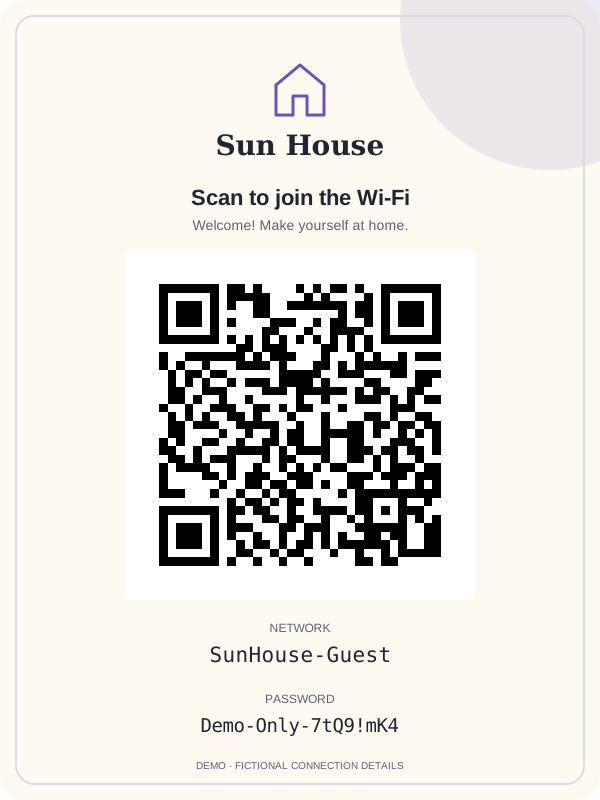
- Under Personalize your Wi-Fi guest card, add the property's name and, optionally, its logo.
- Choose Classic, Minimal or Warm welcome, pick an accent color and write a short welcome message.
- Select the card's language independently of the page. You can make one French card and one English card for the same network.
- Choose Download full card (PNG) for the complete 1200 × 1600 image, or Print this card. The separate PNG and SVG buttons above export only the QR code.
The tool processes the logo and connection details in your browser. It does not configure the router, create a booking-specific password or make the password expire at checkout.
4. Place it inside the property and verify the print
Put the card in the welcome folder, near the entrance or at the guest desk. Leave the QR code's blank border intact and avoid glossy reflections, tiny prints or a decorative frame covering the code. Keep the network name and password readable as a manual fallback.
Test the actual printed card with a phone that is not already connected. Scan, accept the connection prompt, confirm the network name and open a web page. If scanning fails, try entering the displayed details manually: this helps distinguish a printing problem from a network configuration problem.
Do not upload a photo of the real card to a public listing. Airbnb's Wi-Fi security checklist advises keeping the password off public listings and giving it to guests at check-in. A readable QR code also shares the credentials. Use fictional details in promotional photos.
5. Keep a checklist between stays
- Check that the card is present and the guest network still works.
- After changing the network name or password, generate and test a new card, then replace printed copies and welcome-document images.
- Tell the co-host which version is current so an old card is not reprinted.
- If you suspect the password has been shared beyond intended guests, change it on the router and replace the card.
A static QR code has no individual guest expiry. A previous guest's saved details may still work while the network credentials remain valid. If you need access that ends automatically with each booking, investigate a router or managed guest-access service that explicitly supports that workflow.
Quick questions from hosts
Can I keep my existing Wi-Fi password?
Yes. Select My own in the generator and use the current guest-network password. Making a card does not require a router reset.
What if a guest's phone cannot scan the code?
They can join through Wi-Fi settings using the network name and password printed below the code. For more checks, see our step-by-step QR card guide.
Does the card work with a sign-in portal?
The generator handles personal Wi-Fi with a shared password, or an open network. It does not bypass a captive portal or configure enterprise authentication. Guests may still have to complete the network's separate sign-in process.
Make a Wi-Fi card for your rental
Add your property's name, logo and welcome message. Download the full card as PNG or print it, with processing in your browser.